
Change your location.
Search for a place, then tap to go there.
 Roamora
YOUR WORLD, ON YOUR TERMS
Choose a place and change your iPhone’s location. Get started on a Windows PC, then use Roamora on your iPhone.
MORE WAYS TO MAKE YOUR MOVE
Simple controls for wherever you want to go next.
Search for a place, then tap to go there.

Pick a route and choose how fast to move.

Save your favorite places. Restore your real location when connected. Check the result before relying on it.
A CLOSER LOOK
Your places, your pace, your next destination.
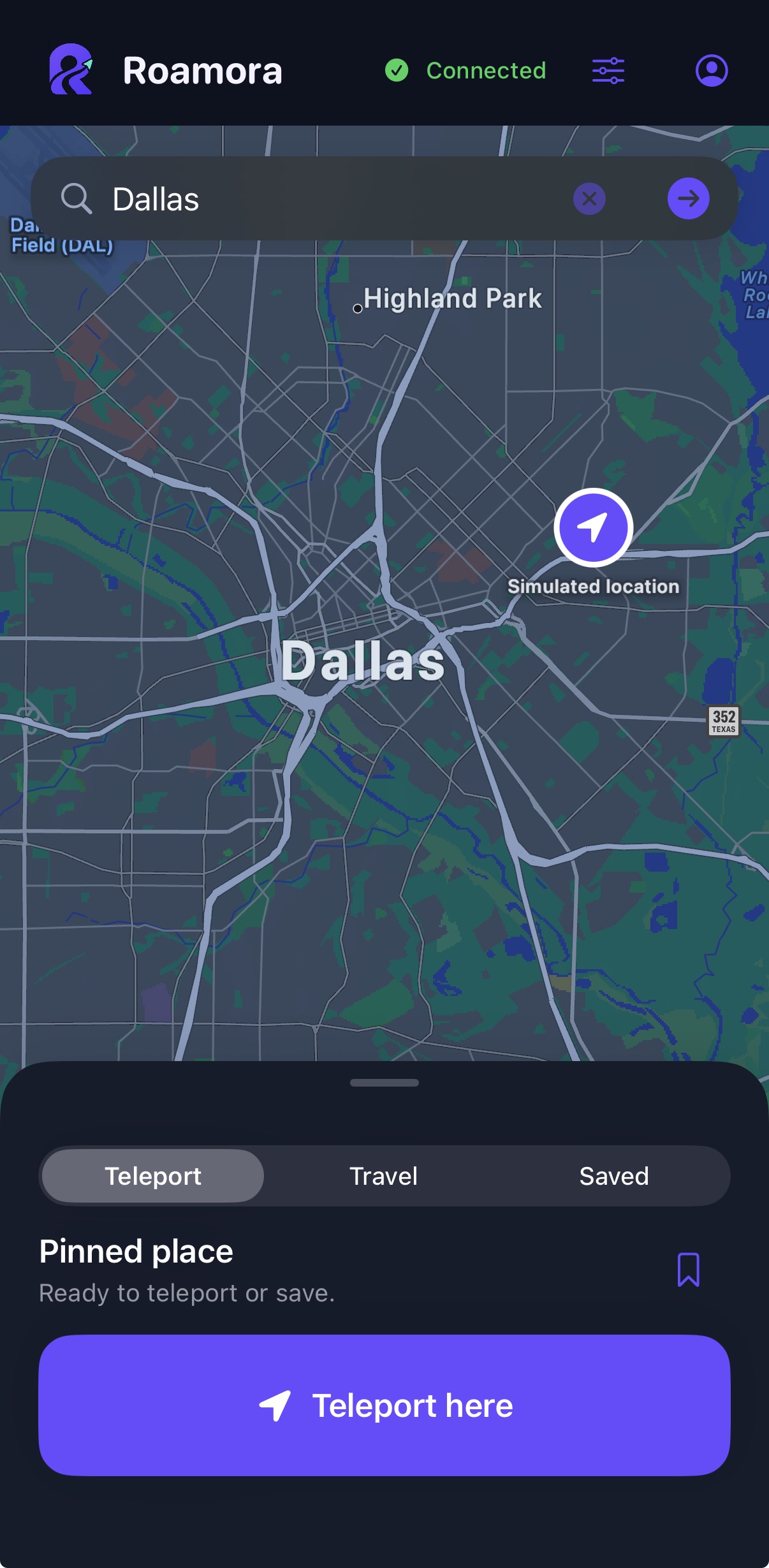
Choose your location from the map.
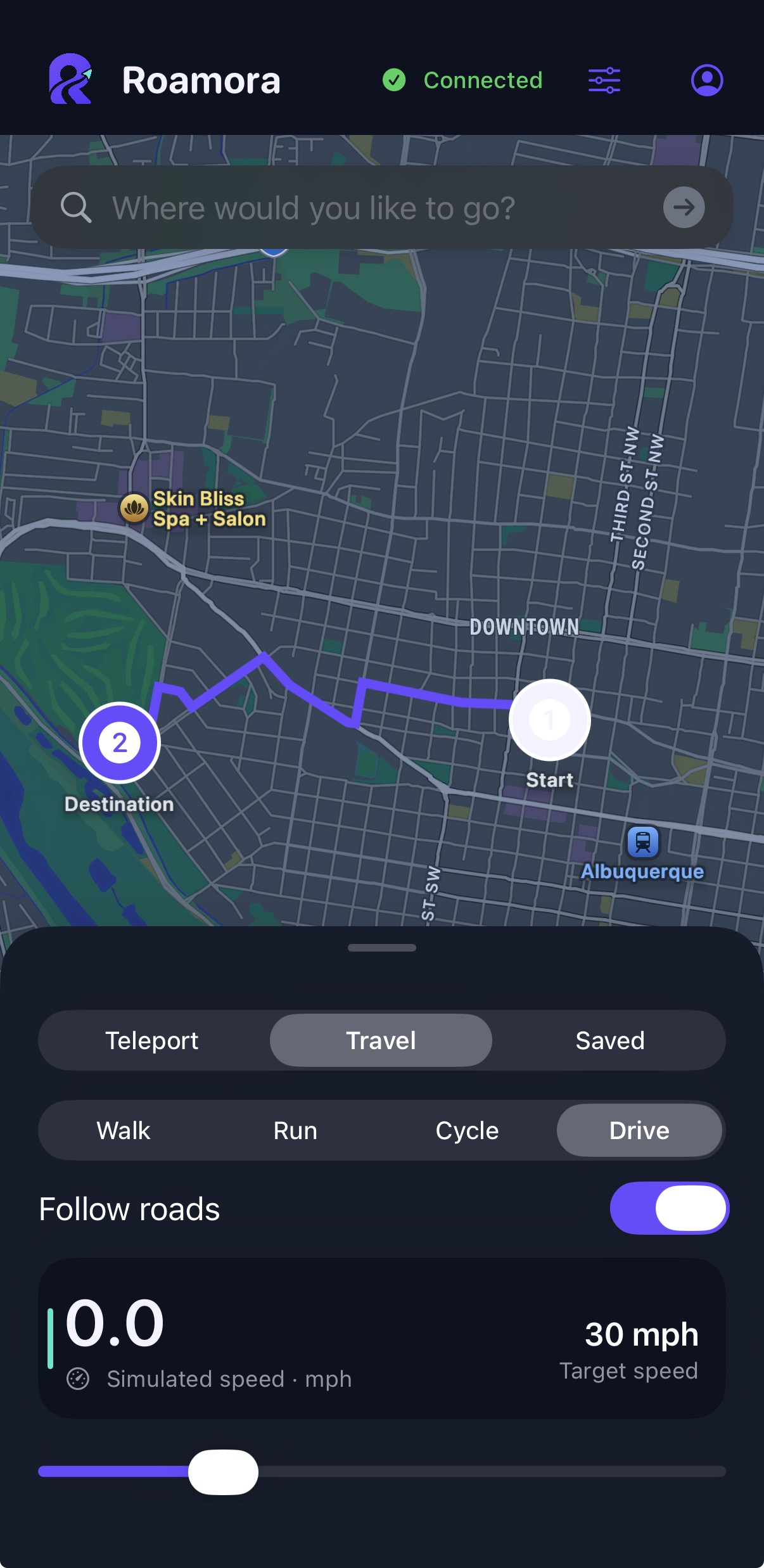
Choose a route and set your pace.
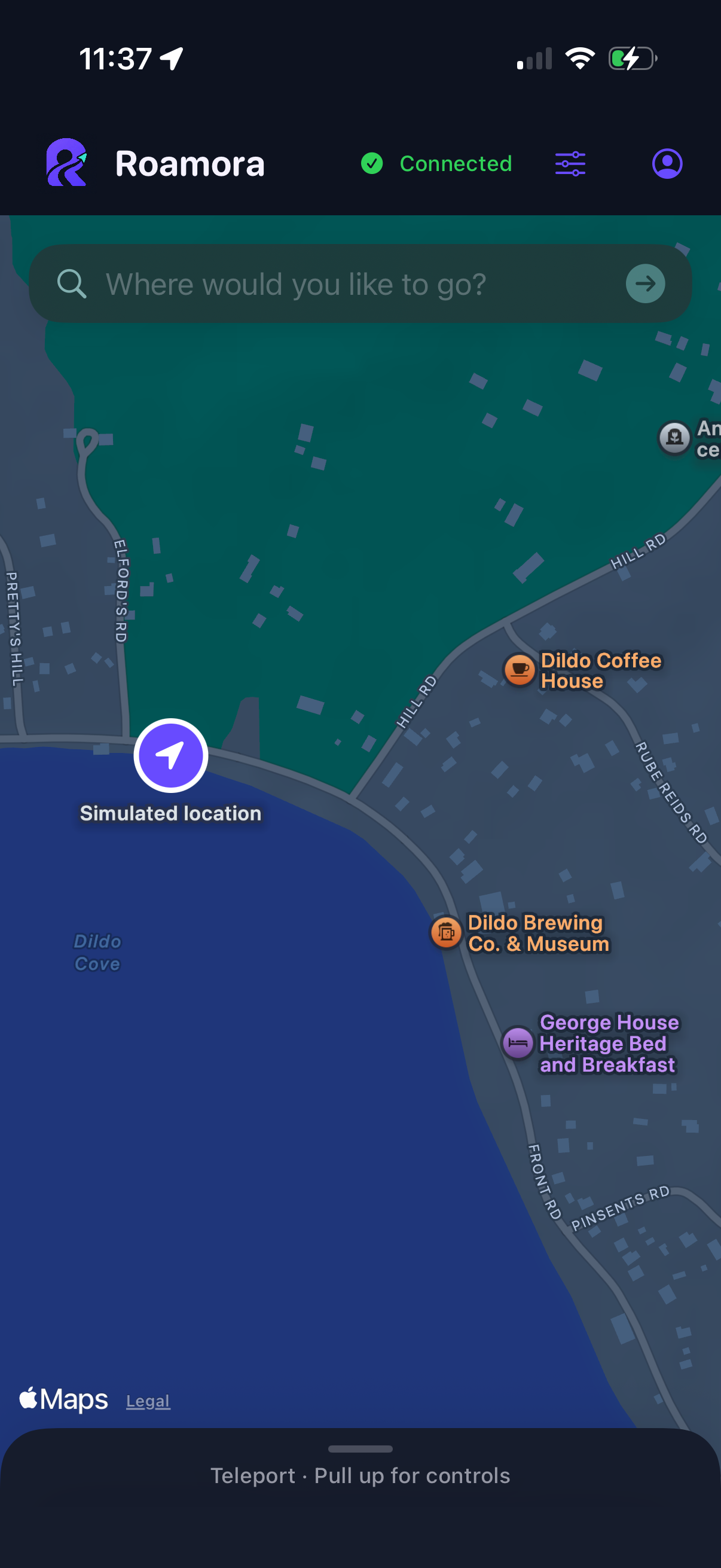
Explore the map with fewer controls.
TELEPORT
Find a destination and tap to change your location.
TRAVEL
Follow a route. Choose to walk, run, cycle, or drive.
EXPLORE
Pull the controls down for a clearer view of your surroundings.
MORE PLACES TO MAKE YOUR MOVE











Roamora is not affiliated with, endorsed by, or sponsored by any of the apps or companies shown. These are examples of location-based apps that Roamora may work with; compatibility varies and is not guaranteed. App names and logos belong to their respective owners. Follow each app’s rules. Never rely on simulated location for emergencies, safety monitoring or navigation.
A GUIDE, NOT GUESSWORK
Download it on your Windows PC and open the file.
Unlock your phone. Tap Trust on your iPhone when asked.
The setup guide shows each tap. Keep it open until you finish.
Keep your phone unlocked and follow the guide on your computer.
YOUR WAY TO ROAM
The same iPhone app. Choose the billing period that suits you.
No card. No automatic subscription.
Your 30 continuous minutes start with your first successful Teleport or Start Travel.
Preview: trial activation is being built.All core features included.
More roaming. Less spending.
$120 paying monthly for a year
$50/ year
$50 billed every year. Renews until cancelled. Manage cancellation in My account.
Save $70 a year (58%) compared with paying monthly.
Test checkout—no real charge. Prices in USD. · Refund policy · Terms
BEFORE YOU START
The current Windows setup supports Windows 10 version 1809 or later, and Windows 11, on 64-bit Intel or AMD PCs. ARM and 32-bit Windows are not supported by this setup. Mac installation is not covered by this Windows guide.
Use your computer for setup. After setup, control your location from your iPhone. You may need the computer again if you reinstall or change phones.
Before 7 days pass, connect LocalDevVPN on Wi-Fi. Open SideStore, tap My Apps, and refresh both SideStore and Roamora. The setup guide shows you how.
Use Google for Roamora. Use the same Apple Account in iLoader and SideStore to sign your apps. Roamora Setup does not ask for your Apple password.
The Windows guide checks the connection and shows the next action. Keep your phone unlocked, use a USB data cable, and approve Trust when prompted. The illustrated phone guide helps you check the remaining settings.
Roamora Setup guides you through SideStore, the app that installs Roamora on your iPhone. Roamora is not in the App Store.
YOUR NEXT MOVE
Open Roamora Setup on your Windows PC, follow the guide, and make your first move from your iPhone.