Pick a place. Go there.
Search the map or enter coordinates, then choose your location.
 Roamora
ROAMORA FOR IPHONE
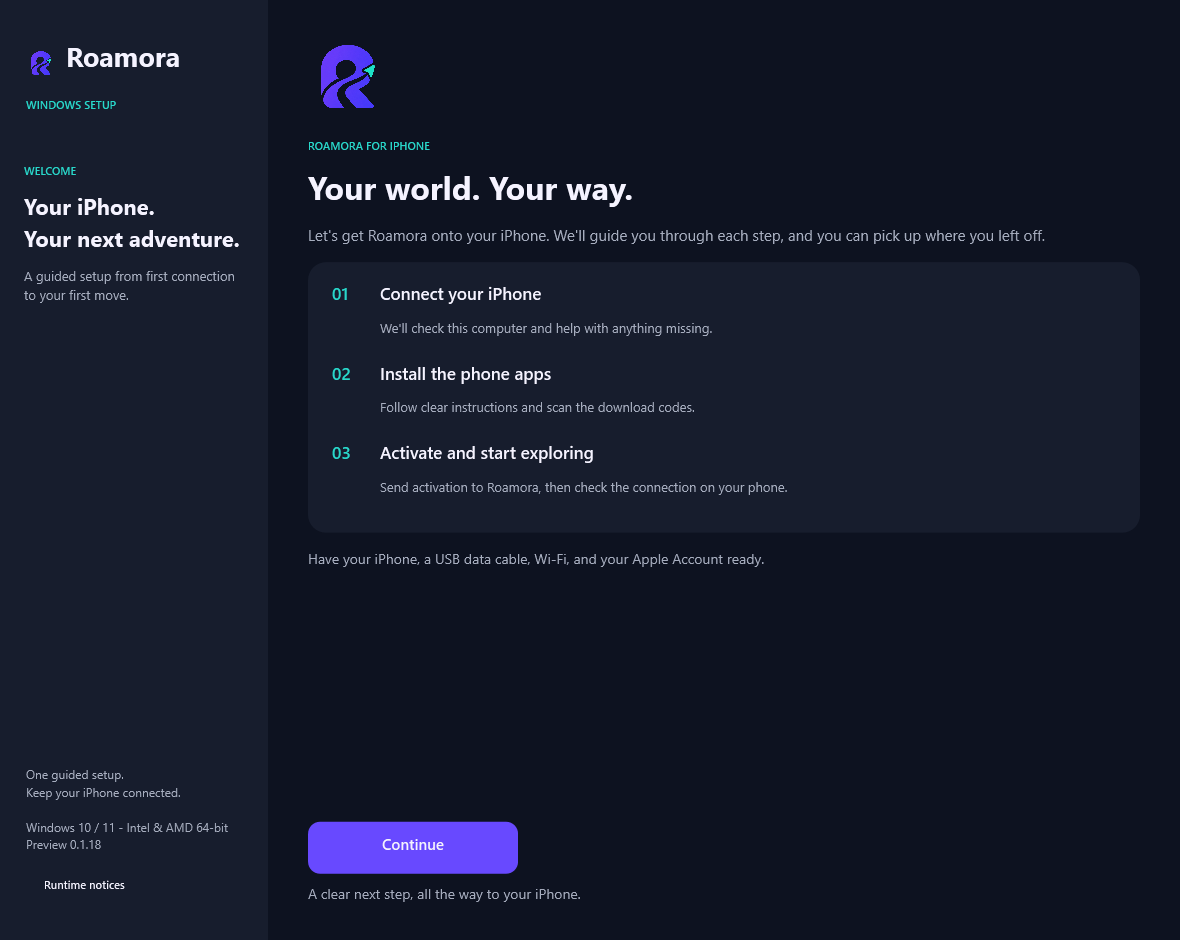
New to installing an iPhone app this way? Roamora Setup walks you through connecting your phone, installing SideStore, and activating Roamora. One guide to follow, from start to finish.
Initial setup needs a Windows PC, your iPhone, a USB data cable and Wi-Fi.
A GUIDE, NOT GUESSWORK
Roamora is installed through SideStore, rather than the App Store. The Windows setup app brings the instructions together.
Download it on your Windows PC and open the file.
Unlock your phone. Tap Trust on your iPhone when asked.
The setup guide shows each tap. Keep it open until you finish.
Keep your phone unlocked and follow the guide on your computer.
Search the map or enter coordinates, then choose your location.
Choose your speed and arrange a trip with up to 12 points.
Save places. Request restoration while connected, then check the result.
BEFORE YOU START
The current Windows setup supports Windows 10 version 1809 or later, and Windows 11, on 64-bit Intel or AMD PCs. ARM and 32-bit Windows are not supported by this setup. Mac installation is not covered by this Windows guide.
Use your computer for setup. After setup, control your location from your iPhone. You may need the computer again if you reinstall or change phones.
Before 7 days pass, connect LocalDevVPN on Wi-Fi. Open SideStore, tap My Apps, and refresh both SideStore and Roamora. The setup guide shows you how.
Use Google for Roamora. Use the same Apple Account in iLoader and SideStore to sign your apps. Roamora Setup does not ask for your Apple password.
The Windows guide checks the connection and shows the next action. Keep your phone unlocked, use a USB data cable, and approve Trust when prompted. The illustrated phone guide helps you check the remaining settings.
Roamora Setup guides you through SideStore, the app that installs Roamora on your iPhone. Roamora is not in the App Store.
YOUR NEXT MOVE
Open your Roamora account to see available access and downloads.